
Connect phone to TV
How to Connect Your Phone to a TV with HDMI
To connect a phone to a TV with HDMI, plug a USB-C to HDMI cable (or a USB-C to HDMI adapter plus a regular HDMI cable) into the phone and the TV, then select that HDMI input on the TV. Your phone's screen and sound appear on the TV with no lag and no Wi-Fi. This only works on phones that support DisplayPort Alt Mode, such as Galaxy S and Note flagships, Pixel 8 and newer, and Xperia 1 and 5.
On this page
Phones don't have an HDMI port, so "HDMI phone to TV" always means a USB-C connection on the phone side that ends in HDMI on the TV side. The part that decides whether it works isn't the cable. It's your phone. Here's how to connect your phone to a TV with HDMI: how to check your phone, which hardware to pick, and how to get the picture and sound right once you're connected.
First: can your phone output HDMI?
An Android phone sends video to an HDMI TV through DisplayPort Alt Mode, a USB-C feature that carries a DisplayPort signal over the USB-C port. The cable or adapter converts it to HDMI. It's hardware, so if your phone doesn't have it, no cable, app or setting will add it.
| Phone | HDMI over USB-C? |
|---|---|
| Samsung Galaxy S8 and newer S, Note 8 and newer, Z Fold, Tab S4 and newer | Yes (also Samsung DeX) |
| Samsung Galaxy A90 5G | Yes, the only Galaxy A |
| Google Pixel 8, 8 Pro, 8a and newer | Yes, with Android 16 |
| Sony Xperia 1 and 5 series, ASUS ROG Phone | Yes |
| Motorola Edge Pro/Ultra models, Edge+, moto g100, g200 | Yes |
| Galaxy A, M, F (except A90 5G), Galaxy Z Flip | No |
| Pixel 7 and older, Redmi, POCO, OnePlus, Realme, moto g/e | Usually no |
More models are listed in phones that support HDMI output. If yours isn't listed, the USB-C to HDMI app checks your exact model on first launch and gives a likely, unlikely or unknown verdict before you buy anything.
Which HDMI cable or adapter to use
There are three ways to connect a phone to a TV with HDMI. They all rely on the same DP Alt Mode signal, so pick the one that fits how you'll use it.
USB-C to HDMI cable
One cable, USB-C on one end, HDMI on the other. Nothing to lose and the simplest option. The downside is that it occupies the phone's only port, so the phone can't charge while you watch.
USB-C to HDMI adapter plus an HDMI cable
A small dongle with an HDMI socket. Use it with any HDMI cable you already have, including a long one to reach a wall-mounted TV. Handy if you also connect a laptop.
USB-C hub with HDMI and PD charging
A hub adds an HDMI port, a USB-C Power Delivery (PD) port for your charger, and often USB-A ports for a keyboard or mouse. It's the right choice for movies, long sessions and Samsung DeX. Some adapters and hubs need the charger connected to work reliably, so plug it into the PD port.
For 4K at 60 Hz, the adapter has to say it supports 4K60; many cheaper ones top out at 4K30 or 1080p. Our USB-C to HDMI adapter guide explains what to look for. Skip adapters sold only as "MHL" or "OTG to HDMI": they won't help a phone without DP Alt Mode.
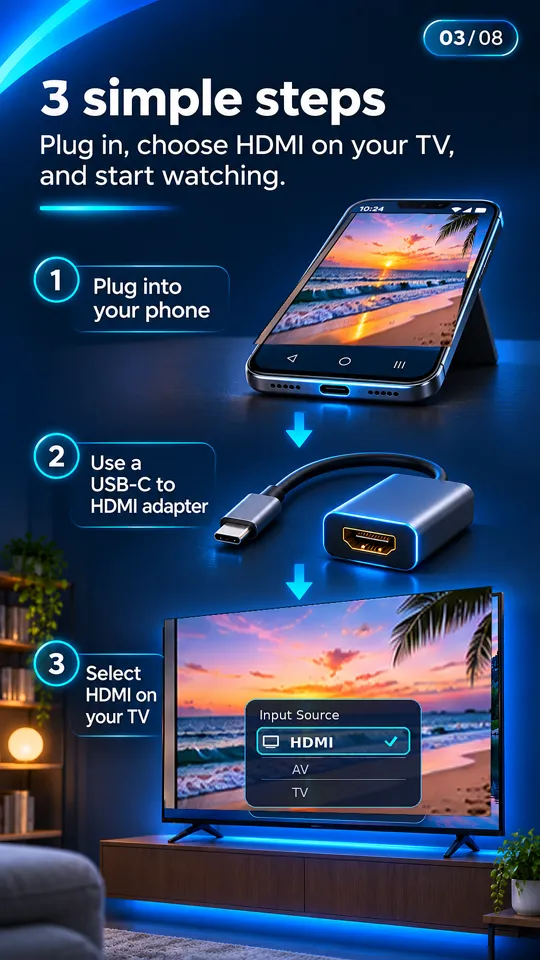
How to connect phone to TV with HDMI, step by step
- Connect the HDMI end to the TV. Use any free HDMI port and note its number.
- Plug the USB-C end into the phone. Push it in fully; thick cases sometimes stop the plug from seating. If you're using a hub, connect your charger to its PD port too.
- Unlock the phone. Some phones won't start video out until they're unlocked.
- Select the HDMI input on the TV. Press Input or Source and choose the port you used. The phone screen should appear in a few seconds.
- Choose mirror or DeX on Samsung. Galaxy phones may open Samsung DeX, a desktop-style interface. To mirror instead, turn DeX off from the quick settings tile (or Settings > Connected devices > Samsung DeX). See Samsung DeX over HDMI.
- Turn the phone to landscape. Start your video and rotate the phone so the picture fills the TV.
Sound over HDMI
When you connect your phone to the TV with HDMI, you get audio too: HDMI carries audio as well as video, so the sound normally moves to the TV speakers or soundbar automatically as soon as the picture appears. Use the TV remote for volume. If you hear nothing, check that the TV isn't muted, raise the phone's media volume, and unplug and replug the cable. A Bluetooth headset that was connected to the phone may keep the audio, so disconnect it.
Resolution and refresh rate
The picture goes out at up to what both the phone and the adapter support, often 1080p or 4K. A mirrored phone screen keeps the phone's shape, so you'll see black bars around it on the TV unless the app you're using goes full screen in landscape. The USB-C to HDMI app detects the HDMI connection live and shows the TV's resolution and refresh rate, which is a quick way to confirm you're getting what you paid for.
Getting full screen: landscape and rotation
Many apps stay in portrait on the TV, which leaves a narrow picture in the middle. Video players like YouTube fill the screen once you go full screen and rotate the phone. For apps that don't rotate on their own, turn on auto-rotate in quick settings. The app's own player has a Rotate for full screen on TV button for the same reason.
Black video in Netflix, Prime Video or Disney+? On some phones these apps block or black out video over HDMI because of HDCP copy protection. The menus show, but the movie doesn't. It's the streaming app's choice, and a different cable won't change it.
If the TV says "No signal"
Check you're on the right HDMI input, then try a different cable or adapter, connect a charger to the adapter, unlock and restart the phone, and update a Pixel 8 or newer to Android 16. Our USB-C to HDMI troubleshooting guide covers each one. If your phone simply doesn't have DP Alt Mode, Wi-Fi casting is the alternative; see connecting without Wi-Fi for options that don't need a router either.
Questions people ask
How do I connect my Android phone to my TV with an HDMI cable?
Use a USB-C to HDMI cable or adapter: USB-C into the phone, HDMI into the TV, then pick that HDMI input on the TV. Your phone must support DisplayPort Alt Mode for the picture to appear.
How do I connect my Samsung phone to my TV with an HDMI cable?
Galaxy S8 and newer S models, Note 8 and newer, Z Fold and the A90 5G work with a USB-C to HDMI cable. They may open Samsung DeX; switch it off in quick settings to mirror instead. Most other Galaxy A phones and the Z Flip don't output video.
Will I get sound on the TV through HDMI?
Yes. HDMI carries audio, so sound plays through the TV when the picture appears. If not, check the TV volume, the phone's media volume, and disconnect any Bluetooth headphones.
Why is my phone screen small on the TV?
Mirroring keeps the phone's shape. Rotate the phone to landscape and use the app's full-screen mode to fill the TV.
Can I charge my phone while it's connected to the TV with HDMI?
Yes, with an adapter or hub that has a USB-C PD port. Plug your charger into it. A plain USB-C to HDMI cable uses the phone's only port, so it can't charge at the same time.