
Connect phone to TV
How to Connect Your Phone to a TV with USB (and Actually See Your Screen)
To connect a phone to a TV with USB and see your screen, you need a USB-C to HDMI cable: plug the USB-C end into the phone and the HDMI end into the TV, then switch the TV to that HDMI input. It only works if your phone supports DisplayPort Alt Mode (video out over USB-C). A normal USB charging cable plugged into the TV's USB port will not mirror your screen; at most it charges the phone or lets the TV play files from it.
On this page
Most people try the obvious thing first: the phone's charging cable, plugged into the USB port on the back of the TV. The phone starts charging, maybe the TV offers to browse some photos, and that's it. No mirrored screen. This guide explains why, and how to connect your phone to a TV with USB in a way that actually shows your screen: which cable you need, and how to check whether your phone can do it before you spend money.
Why a normal USB cable doesn't mirror your phone
The USB port on a TV is built for storage and power. It's there so you can plug in a USB stick and play movies, or power a streaming stick. It doesn't accept a video signal.
So when you plug a phone into it with a charging cable, the best case is that the TV treats the phone like a USB drive and shows its photos and videos in the TV's media player. That's "USB to TV" in the file sense, not screen mirroring. Many phones won't even do that much by default, because they only charge until you pick "File transfer" in the USB notification.
To watch your phone on the TV with USB, the video has to go into an HDMI port. That's what a USB-C to HDMI cable does.
The cable you need: USB-C to HDMI
A USB-C to HDMI cable has a USB-C plug on one end and a full-size HDMI plug on the other. You can also use a small USB-C to HDMI adapter with your existing HDMI cable, or a USB-C hub that has an HDMI port. All three work the same way.
Inside, the cable converts a DisplayPort video signal coming out of the phone's USB-C port into HDMI. That signal only exists if the phone supports DisplayPort Alt Mode (DP Alt Mode), a USB-C feature defined by VESA. It's hardware: the phone's chipset and USB-C port wiring must support it, and the maker must have enabled it. Charging and data over USB-C don't mean video works, and no app, setting or OTG adapter can add it. Our guide on what DisplayPort Alt Mode is goes deeper.
Step 1: Check if your phone supports video out over USB-C
This is the step to do before buying anything. Phones with DP Alt Mode include, among others:
- Samsung: Galaxy S8 and newer S models (including S20 FE), Note 8 and newer, Z Fold series, Galaxy Tab S4 and newer (and Tab S5e), and the Galaxy A90 5G, the only Galaxy A with it.
- Google Pixel 8, 8 Pro, 8a and newer, after the Android 16 update. Pixel 7 and older can't.
- Sony Xperia 1 and Xperia 5 series, ASUS ROG Phone series, Huawei Mate and P flagships, some LG G and V flagships.
- Motorola Edge 20 Pro, Edge 30 Pro, Edge 30 Ultra, Edge 40 Pro, Edge 50 Ultra, Edge+, moto g100 and g200.
Usually no video out: Galaxy A, M and F phones (except the A90 5G), Galaxy Z Flip, Pixel 7 and older, Redmi, POCO, OnePlus, Realme, Tecno, Infinix, Nokia, moto g and e, and most budget phones. The full list is in phones that support HDMI output.
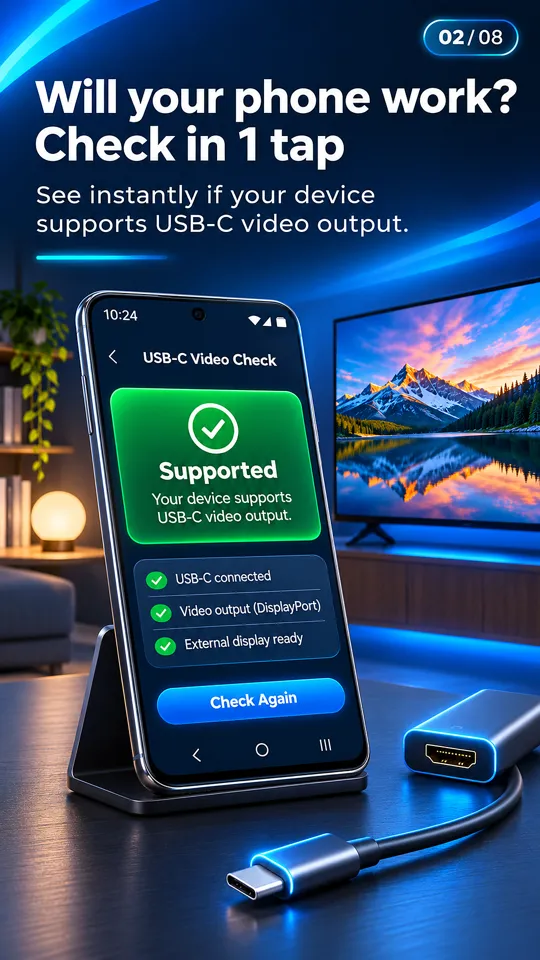
If your phone isn't on either list, the free USB-C to HDMI app gives you a verdict for your exact model (likely, unlikely or unknown) when you first open it.
How to connect phone to TV with USB-C to HDMI: the steps
Once you know your phone has video out, connecting your phone to the TV with USB takes under a minute.
- Get a USB-C to HDMI cable or adapter. Any decent one works for 1080p. For 4K at 60 Hz, pick one that says it supports 4K60. Avoid cables sold as "OTG" or "charge only".
- Plug the HDMI end into the TV. Note the number of the HDMI port (HDMI 1, HDMI 2 and so on).
- Plug the USB-C end into the phone. Remove a thick case if the plug doesn't go all the way in. Unlock the phone.
- Switch the TV to that HDMI input. Press Input or Source on the remote and pick the port you used. Your phone screen should appear within a few seconds.
- Plug in power if the adapter has a charging port. Some adapters need a charger connected to their USB-C PD port to work reliably, and it keeps the phone charged during long videos.
- Rotate to landscape. Turn the phone sideways in video apps to fill the TV. Samsung phones may open DeX, a desktop-style view, instead of a mirror; you can switch with the DeX tile in quick settings.
When it works, you get a mirrored screen with sound through the TV, no lag and no Wi-Fi needed, at up to the resolution your phone and adapter support (often 1080p or 4K). The app also detects the HDMI connection live and shows the TV's resolution and refresh rate, so you can confirm the link. For more on cable types and sound, see how to connect your phone to a TV with HDMI.
Streaming apps may show a black screen. Netflix, Prime Video and Disney+ can block or black out video over HDMI on some phones because of copy protection (HDCP). That's the app's decision, not a fault in your cable.
What if your phone doesn't support USB video out?
Then you can't connect your phone to a TV with USB and mirror it: a plain USB-C to HDMI cable won't work, however good it is, and an "MHL adapter" or "OTG to HDMI" adapter won't either. Be honest with yourself here: the hardware just isn't there. Your realistic options:
- Cast over Wi-Fi. Use Chromecast or Google TV, your phone's built-in Screen mirroring or Smart View (Miracast) to a smart TV, or DLNA casting to a smart TV. The app can cast your photos and videos to Chromecast, DLNA smart TVs (Samsung, LG, Sony and others) and any TV with a web browser.
- DisplayLink-type adapters. Some USB display adapters have their own chip and a driver app named in their manual. They can work on phones without DP Alt Mode, but with lower quality and more latency than a direct cable.
- Play files from USB storage. Copy videos to a USB stick and plug it into the TV, or connect the phone in File transfer mode if your TV can browse it. It plays files, but it isn't mirroring.
No Wi-Fi where you are? See how to connect your phone to a TV without Wi-Fi.
USB to TV options compared
| Connection | Mirrors your screen? | Needs DP Alt Mode? | What you get |
|---|---|---|---|
| USB-C to HDMI cable or adapter into the TV's HDMI port | Yes | Yes, required | Full mirror, TV sound, no lag, no Wi-Fi |
| Charging cable into the TV's USB port | No | No | Charging; sometimes browse photos and videos |
| USB stick into the TV | No | No | Plays copied video, photo and music files |
| DisplayLink adapter with driver app | Yes, lower quality | No | Mirror with some latency |
It's plugged in but nothing shows
Check the TV input first; it's the most common cause. Then try another cable (cheap or charge-only cables are frequent culprits), plug a charger into the adapter if it has a PD port, unlock and restart the phone, and on a Pixel 8 or newer make sure you're on Android 16. The full checklist is in USB-C to HDMI not working.
Questions people ask
How do I connect my phone to my TV with a USB cable?
Use a USB-C to HDMI cable, not a charging cable: USB-C into the phone, HDMI into the TV, then select that HDMI input on the TV. Your phone must support DisplayPort Alt Mode for the screen to appear.
Why does my phone only charge when I plug it into the TV's USB port?
The TV's USB port is for power and storage, not video input. It can charge the phone and sometimes browse its files, but it can't show your screen. Video has to go into an HDMI port.
Can I watch my phone on TV with USB if my phone doesn't support HDMI?
Not with a plain USB-C to HDMI cable. Use Wi-Fi casting or screen mirroring instead, a DisplayLink-type adapter with its driver app, or copy files to a USB stick and play them on the TV.
Does a USB-C to HDMI cable work with any phone?
No. Only phones with DisplayPort Alt Mode, such as Galaxy S and Note flagships, Pixel 8 and newer, Xperia 1 and 5, and ROG Phones. Most budget phones and Galaxy A models don't support it.
Can an app make my phone output video over USB?
No. Video out over USB-C is hardware. An app can tell you whether your model likely supports it and detect the connection, but it can't add the feature.