
Will my phone work?
USB-C to HDMI Adapter Guide: Which Kind Works With Your Phone
A USB-C to HDMI adapter only works with your phone if the phone supports DisplayPort Alt Mode, or if the adapter is a DisplayLink-type adapter with its own driver app. Check your phone first. Then pick a plain cable for simple mirroring, or a hub with HDMI and USB-C PD pass-through if you want to charge while connected, and look for 4K60 and HDMI 2.0 if your TV is 4K.
On this page
Most "my adapter doesn't work" stories are not about a bad adapter. The phone could never send video in the first place, or the adapter needed power and got none. This guide sorts USB-C to HDMI adapters into the three kinds that matter, explains which specs are worth paying attention to, and clears up the OTG confusion. We do not recommend brands or list prices: any adapter of the right type and specs will do the job.
Step zero: will any USB-C to HDMI adapter work on your phone?
A plain USB-C to HDMI adapter does not create video. It converts the DisplayPort signal your phone sends through DisplayPort Alt Mode into HDMI. If the phone has no DP Alt Mode, there is nothing to convert, and the TV shows "No signal". No app, setting or adapter type changes that, with one exception: DisplayLink adapters, covered below.
Check your model in our list of phones that support HDMI output, or run the free compatibility check in the USB-C to HDMI app before you buy anything.
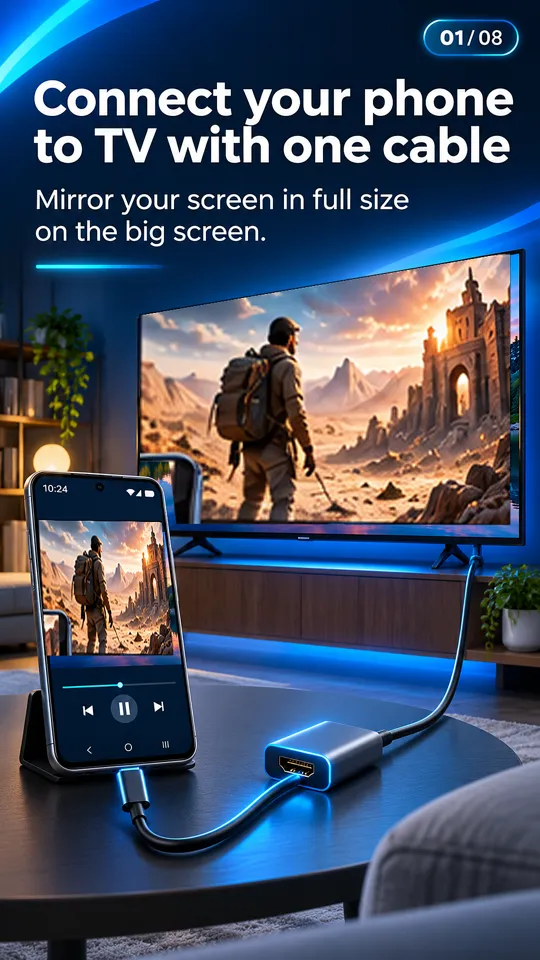
The three kinds of USB-C to HDMI adapter
1. Plain USB-C to HDMI cable or adapter
A single cable with USB-C on one end and HDMI on the other, or a short USB-C to HDMI converter that you plug a regular HDMI cable into. Also sold as a "type C to HDMI converter". It is the simplest option and gives full quality with no lag, but only on a phone with DP Alt Mode.
- Good for: mirroring videos, photos and games to a TV.
- Downside: it occupies the phone's only port, so you cannot charge while watching. Long movies can drain the battery.
2. USB-C hub or dock with HDMI and PD
A USB-C hub has an HDMI port plus extra ports, usually including a USB-C Power Delivery (PD) input. You plug your charger into the hub, and the hub passes power through to the phone while it sends video to the TV. Some hubs add USB-A ports for a keyboard, mouse or game controller, useful with Samsung DeX or Motorola Ready For.
- Good for: long sessions, desktop modes, a TV setup you leave plugged in.
- Watch out: some hubs only output video properly when the charger is connected. Use the HDMI port and plug the charger into the PD port.
- Still needs: DP Alt Mode on the phone. A hub is not a workaround.
3. DisplayLink and other app-based adapters
A DisplayLink adapter contains its own video chip. Instead of using DP Alt Mode, it needs a driver app, named in the adapter's manual, installed on the phone. The app captures the screen and sends it to the adapter as USB data.
- Good for: phones without DP Alt Mode where a cable is the only option.
- Downside: lower picture quality and more latency than a plain cable on a supported phone. Fast games and video can stutter.
- Check: the adapter's description must say it works with Android and name its app. Without that, assume it is a plain DP Alt Mode adapter.
| Adapter kind | Phone needs DP Alt Mode? | Charge while connected | Quality and lag |
|---|---|---|---|
| Plain USB-C to HDMI cable or adapter | Yes | No | Full quality, no lag |
| USB-C hub or dock (HDMI + PD) | Yes | Yes, via PD pass-through | Full quality, no lag |
| DisplayLink / app-based adapter | No, needs its driver app | Depends on model | Lower quality, more latency |
What specs to look for in a USB-C to HDMI adapter
Adapter listings are full of numbers. These are the ones that matter for a phone and a TV:
- Confirm your phone first. Check the phone list or the app's verdict. If the phone has no DP Alt Mode, only a DisplayLink-type adapter can work.
- Match the resolution to your TV. For a 4K TV, look for "4K60" or "4K@60Hz". Adapters labeled only "4K" often mean 4K at 30Hz, which looks choppy in motion. For a 1080p TV, any adapter is enough.
- Look for HDMI 2.0. 4K at 60Hz needs HDMI 2.0 on the adapter. HDMI 1.4 adapters top out at 4K30.
- Decide on PD pass-through. If you will watch for more than an hour, or use DeX or Ready For, choose a hub or adapter with a USB-C PD charging port.
- Pick a sensible cable length. Choose a length that reaches from where you sit to the TV without strain. If you need more distance, use a short adapter plus a longer standard HDMI cable rather than a very long USB-C cable.
Your phone's own limit also applies. A 4K60 adapter cannot push more than the phone outputs, and the actual result is often 1080p or 4K depending on the phone. When connected, the USB-C to HDMI app shows the TV's resolution and refresh rate, so you can see what you are actually getting.
Tip: a thick phone case can stop the USB-C plug from seating fully, which causes flickering or no signal. If an adapter seems unreliable, try it with the case off before returning it.
The OTG to HDMI myth
Adapters sold as "OTG HDMI" or "OTG to HDMI" cause a lot of confusion. USB On-The-Go (OTG) lets a phone act as a host for USB drives, keyboards and cameras. It does not give video output.
An "OTG HDMI" adapter is usually just a plain USB-C to HDMI adapter (or, for micro-USB, an MHL adapter) with OTG in the name. It works only if the phone already supports DP Alt Mode, or MHL on old micro-USB phones. Having OTG support, which nearly every phone does, tells you nothing about video. More on the old micro-USB standard in our MHL checker guide.
Which USB to HDMI adapter for a phone without DP Alt Mode?
If you search for a "USB to HDMI adapter for phone" because your phone is not on the supported list, you have two honest options:
- A DisplayLink-type adapter with an Android driver app, accepting lower quality and some lag.
- No adapter at all: cast over Wi-Fi with Chromecast or Google TV, the phone's Screen mirroring or Smart View (Miracast), DLNA to a smart TV, or Browser Cast through the TV's web browser. The USB-C to HDMI app casts photos and videos this way, with the phone as a remote.
Adapter plugged in but no picture?
On a phone that does support video out, the usual causes are the wrong HDMI input on the TV, a charge-only USB-C cable, an adapter that needs its charger connected, a locked phone or a thick case. Streaming apps such as Netflix, Prime Video and Disney+ may also show black video over HDMI on some phones because of HDCP protection. Work through our USB-C to HDMI not working checklist, or see the full setup in how to connect a phone to a TV with HDMI.
Questions people ask
Will any USB-C to HDMI adapter work with my phone?
Only if your phone supports DisplayPort Alt Mode. If it does, any decent USB-C to HDMI adapter works. If it does not, only a DisplayLink-type adapter with its own driver app can show a picture.
Do OTG to HDMI adapters work on any phone?
No. OTG does not provide video output. An OTG HDMI adapter works only on a phone that already supports DisplayPort Alt Mode, or MHL on older micro-USB phones.
Can I charge my phone while using a USB-C to HDMI adapter?
Yes, with a USB-C hub or adapter that has a Power Delivery (PD) pass-through port. Plug the charger into the hub's PD port, not the phone.
What is a DisplayLink adapter?
A USB display adapter with its own video chip that needs a driver app on the phone. It can work on phones without DisplayPort Alt Mode, but with lower quality and more lag than a plain cable.
Do I need a 4K USB-C to HDMI adapter?
Only for a 4K TV or monitor. Look for 4K60 and HDMI 2.0; a plain "4K" label often means 30Hz. For a 1080p TV, any working adapter is enough.